TARGET: File
| Requirements | Limitations | Considerations |
|---|---|---|
Endgame installed on the target host | Only one host can be targeted at a time | |
The hostname of the target host | Cannot target folders | |
The target File Path |
TACTIC: Delete File
1 - Target the host
-
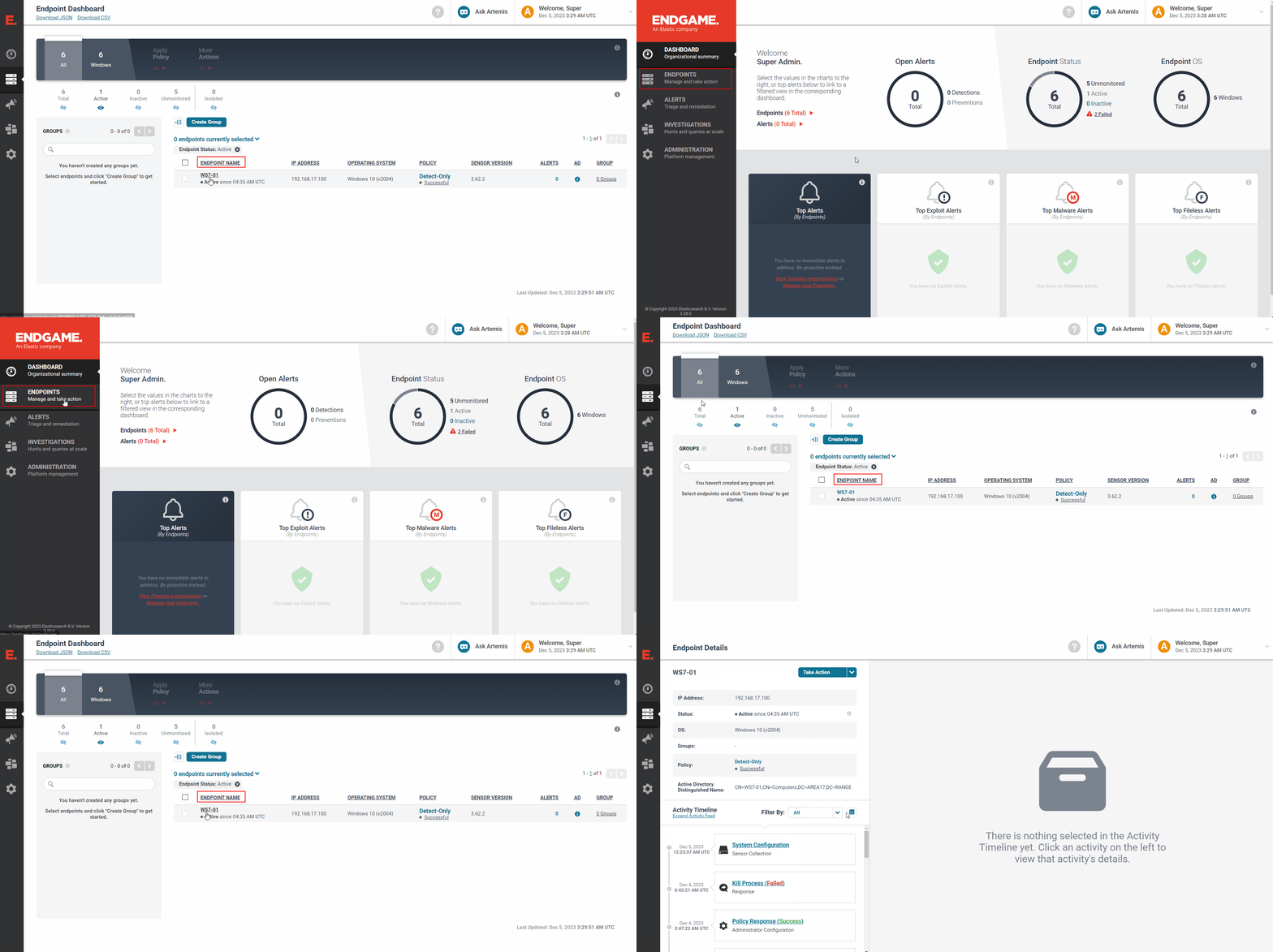
From the Endgame web UI, navigate to the
Endpointstab on the left-hand pane -
Find the hostname of interest and click on the respective
ENDPOINT NAMEto get to theEndpoint Detailspage
2 - Target and delete the file
-
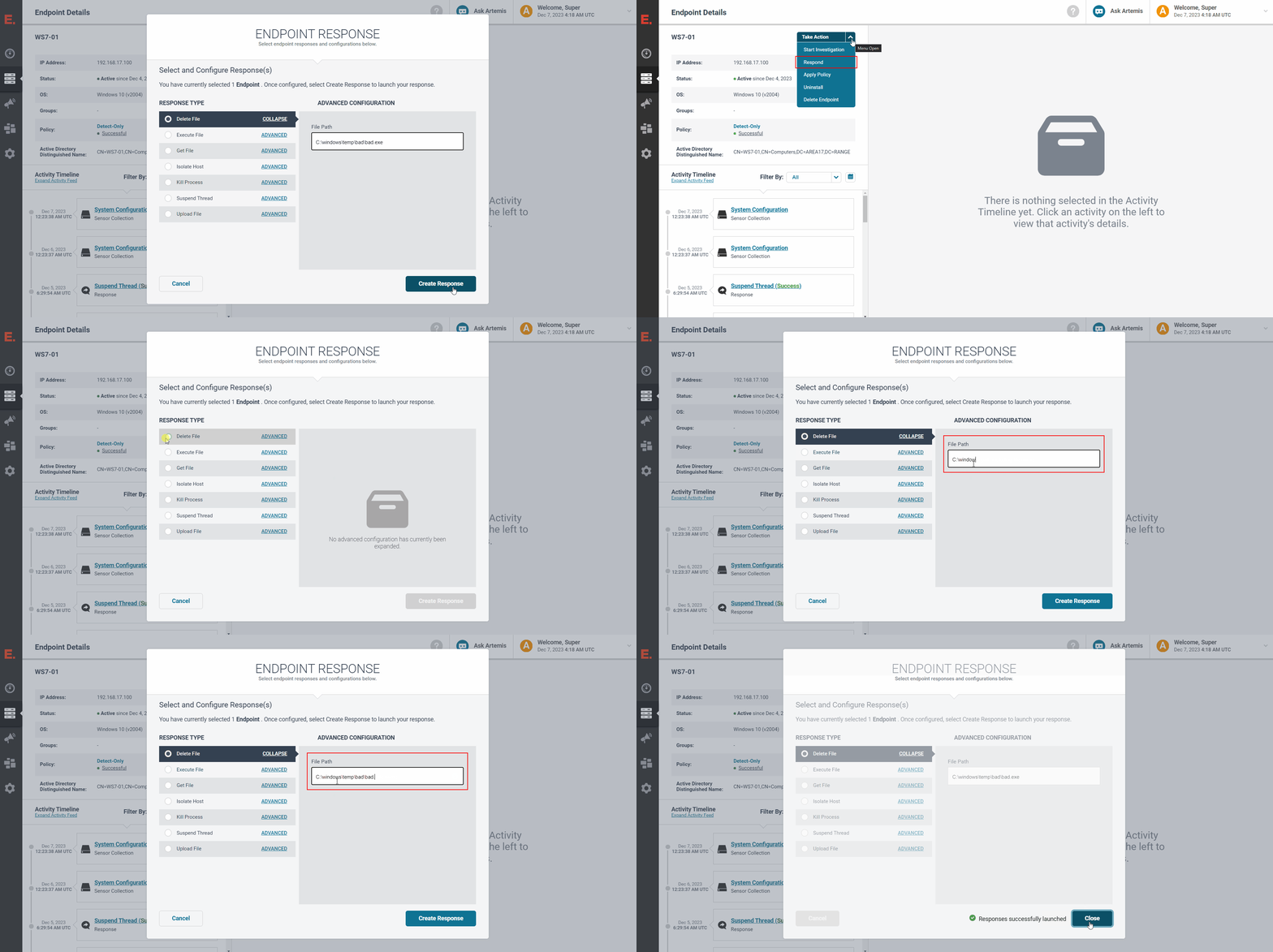
Click on
Take Action->Respond -
Click on the
Delete Fileradio button and fill theFile Namewith the full file path -
Click on
Create Response -
Verify that the
Responses successfully launchedmessage appears and clickClose
3 - Verify the response results
-
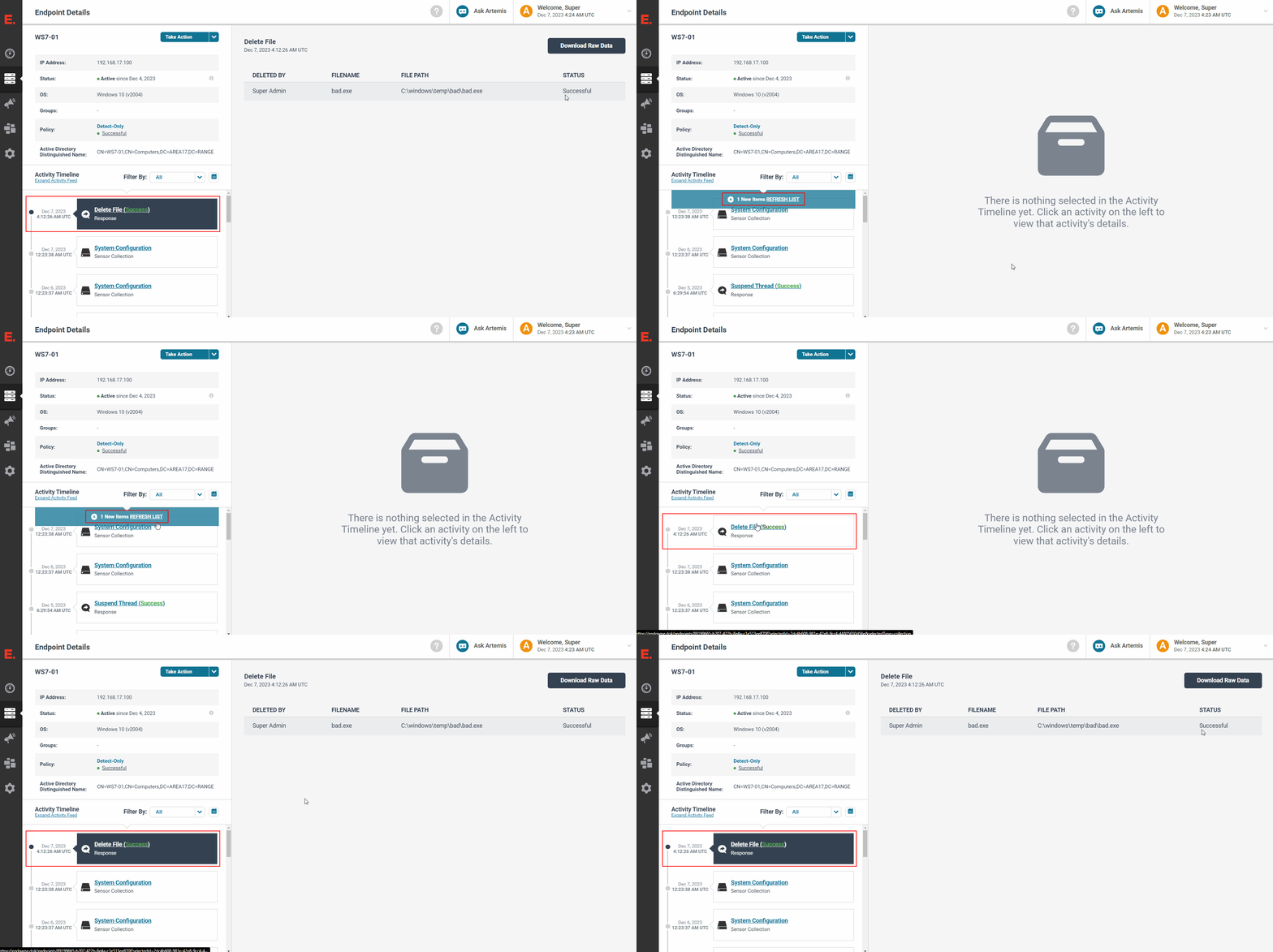
Wait for the
Activity Timelineunder theEndpoint Detailson the left-hand pane to update with aREFRESH LISTnotification -
Click on the
REFRESH LISTnotification -
Verify that the newest
Delete Fileresponse entry under theActivity TimelinesaysDelete File (Success)
NOTE: If the entry says
Delete File (, click on the entry to expand the log message to investigate why the response failedFailed)
TACTIC: Download File
1 - Target the host
-
From the Endgame web UI, navigate to the
Endpointstab on the left-hand pane -
Find the hostname of interest and click on the respective
ENDPOINT NAMEto get to theEndpoint Detailspage
2 - Target and download the file
-
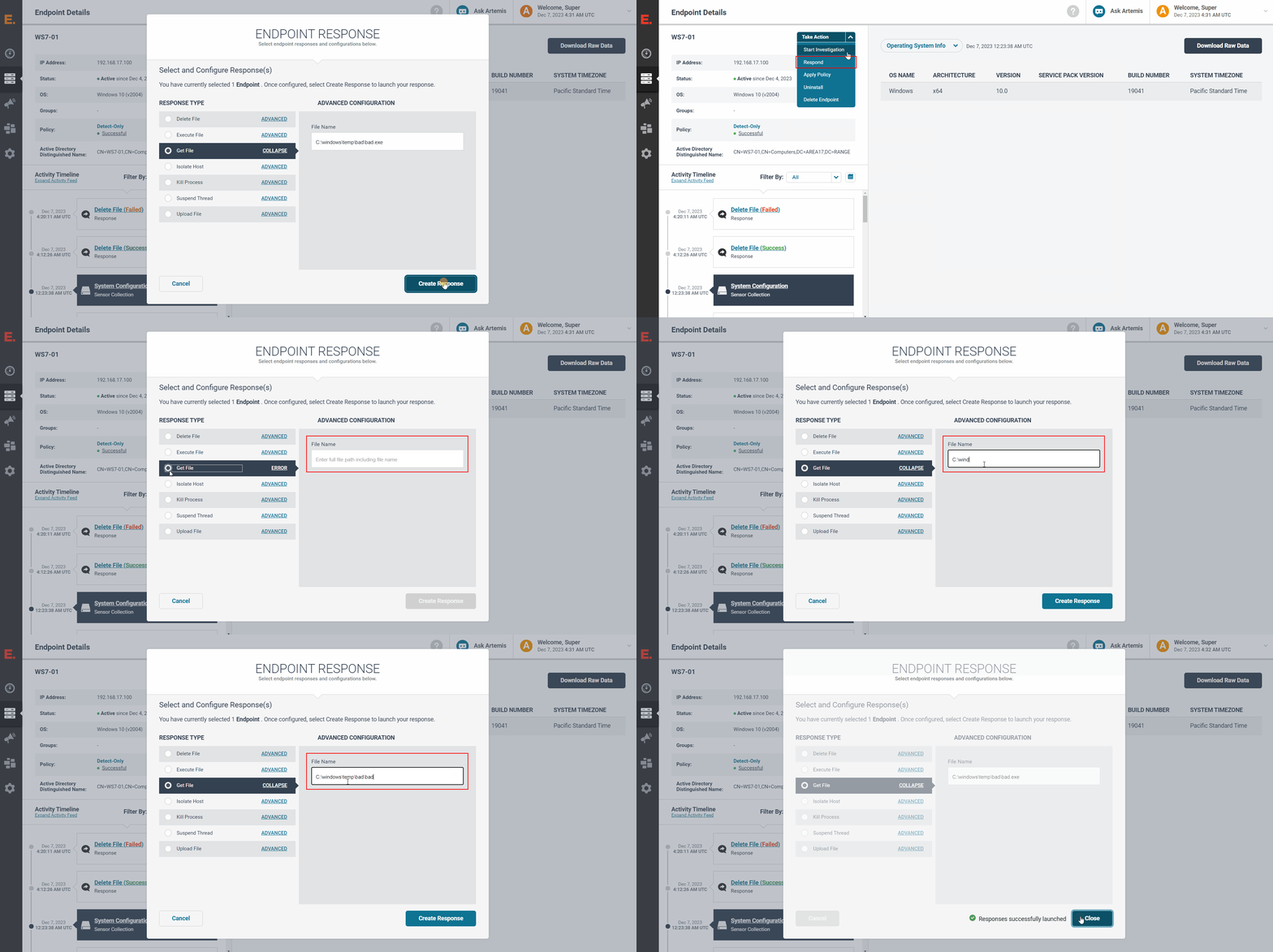
Click on
Take Action->Respond -
Click on the
Get Fileradio button and fill theFile Namewith the full file path -
Click on
Create Response -
Verify that the
Responses successfully launchedmessage appears and clickClose
3 - Verify the response results
-
Wait for the
Activity Timelineunder theEndpoint Detailson the left-hand pane to update with aREFRESH LISTnotification -
Click on the
REFRESH LISTnotification -
Verify that the newest
Get Fileresponse entry under theActivity TimelinesaysGet File (Success)
NOTE: If the entry says
Get File (, click on the entry to expand the log message to investigate why the response failedFailed)
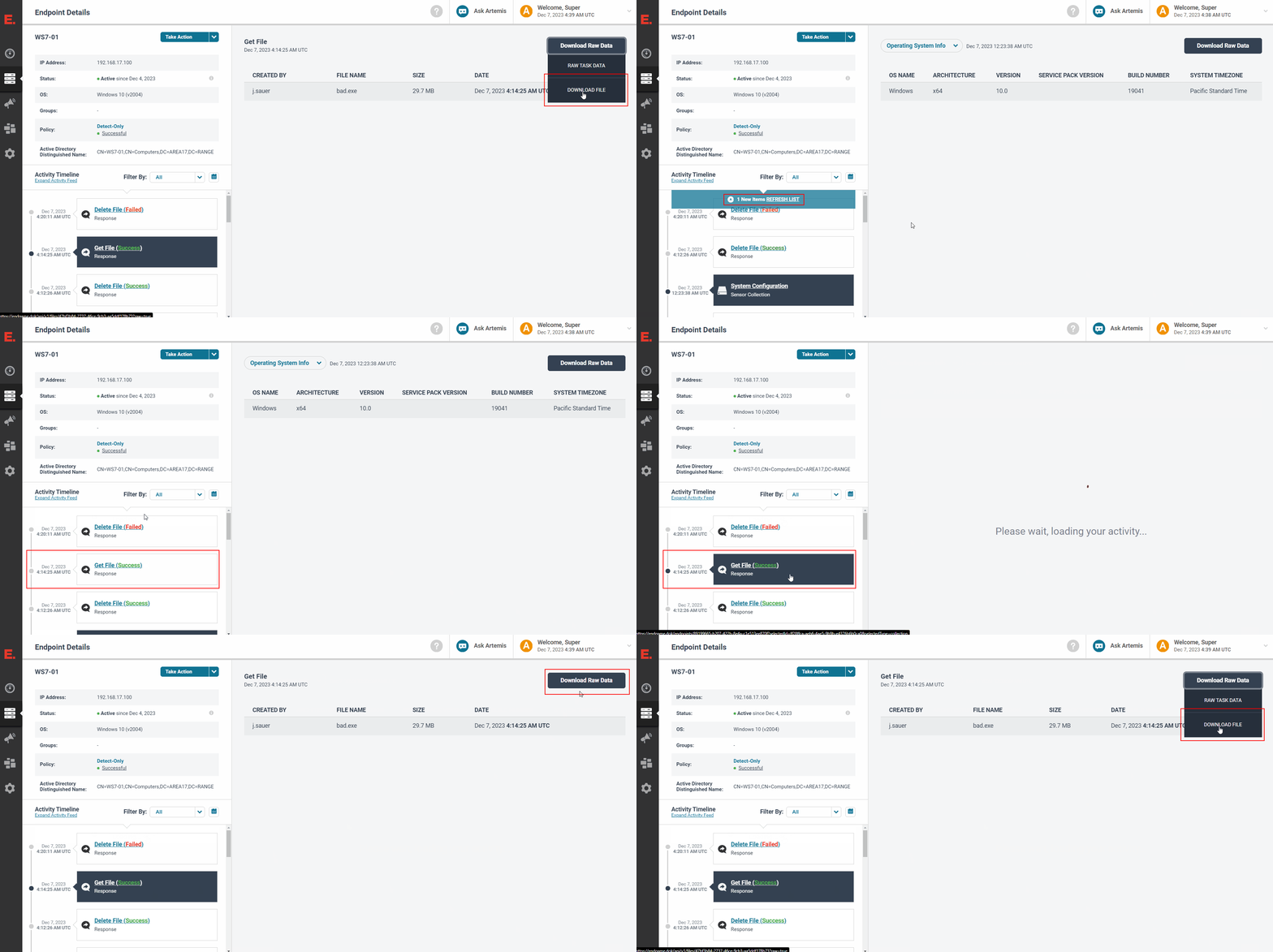
- Select the entry and click
Download Raw Data->Download Fileto download the file